
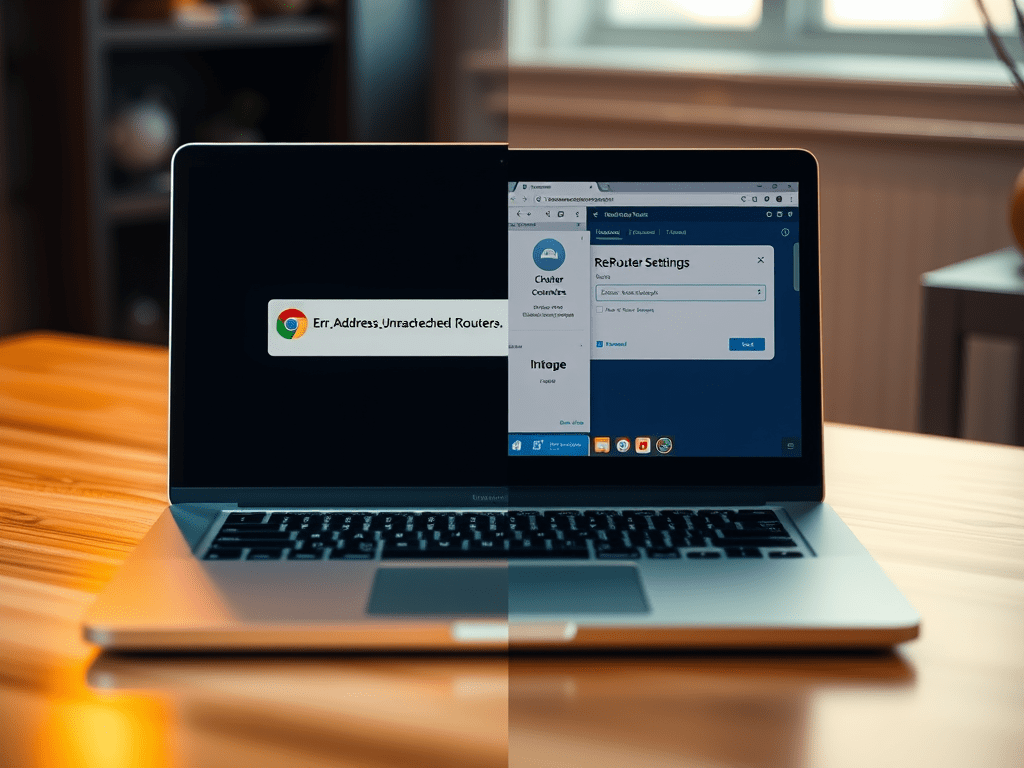
📌 Problem Overview
When trying to access a local router via Chrome on macOS using the address http://192.168.3.1, Chrome displays an error like:
- “This site can’t be reached”
- “ERR_ADDRESS_UNREACHABLE”
However:
- ✅ Safari can access the router without issue
- ✅ The network is fully functional
- ✅ Ping to the IP works perfectly via Terminal
This strongly suggests Chrome-specific behavior is at play.
🔍 Initial Troubleshooting Attempts
✅ Attempt 1: Reinstalling Chrome
- Uninstalled and reinstalled Chrome from scratch
- ❌ Chrome still cannot access
192.168.3.1
✅ Attempt 2: Resetting Chrome Settings
- Cleared all browser data and cache
- Restored settings to default
- ❌ Still unable to connect
✅ Attempt 3: Launch Chrome with Command-Line Flags
🎉 Success! Chrome can now access http://192.168.3.1 Confirms that network is not the issue — Chrome’s runtime mode is
🤯 New Issue: Works Once, Fails the Next Time
After packaging the command into an .app launcher, it works the first time but fails on subsequent runs with the same error.
🔬 Root Cause Analysis
❗ Chrome’s Default Security Mechanisms
Chrome includes several built-in protections that can interfere with local network access:
| Feature | Description |
|---|---|
| Site Isolation | Separates sites into processes to prevent data leaks |
| Strict CORS | Enforces strict origin policies, even on local IPs |
| Sandbox Networking | Limits network access from subprocesses |
| Web Security | Blocks insecure origin access to local/private IPs |
These mechanisms can block access to 192.168.x.x addresses under certain conditions.
❗ Conflict with --user-data-dir
Using a custom user data directory (e.g., /tmp/chrome-router) can cause Chrome to:
- Create lock files
- Cache session data
- Refuse to launch if the previous session didn’t exit cleanly
That’s why it works the first time, but fails on subsequent launches.
✅ Solutions
✅ Solution 1: Clean the User Data Directory Before Launch (Recommended)
Modify the script to delete the previous data directory before launching Chrome:
AppleScript Example:
do shell script "rm -rf /tmp/chrome-router && mkdir -p /tmp/chrome-router && /Applications/Google\\ Chrome.app/Contents/MacOS/Google\\ Chrome --disable-web-security --disable-features=IsolateOrigins,site-per-process --user-data-dir='/tmp/chrome-router' http://192.168.3.1 &> /dev/null &"✅ Ensures a clean Chrome instance every time
✅ Solution 2: Use a Unique Directory Each Time (Dynamic)
Generate a new temporary directory using a timestamp:
✅ Avoids conflicts
⚠️ Leaves multiple folders under /tmp
do shell script "rm -rf /tmp/chrome-router && mkdir -p /tmp/chrome-router && /Applications/Google\\ Chrome.app/Contents/MacOS/Google\\ Chrome --disable-web-security --disable-features=IsolateOrigins,site-per-process --user-data-dir='/tmp/chrome-router' http://192.168.3.1 &> /dev/null &"✅ Solution 3: Use Lightweight Logging Mode
This simpler command can also work (though less reliable):
/Applications/Google\ Chrome.app/Contents/MacOS/Google\ Chrome --enable-logging --v=1 http://192.168.3.1
⚠️ Sometimes works due to relaxed internal handling in debug mode
🧰 Packaging as a .app Launcher
You can use macOS’s Script Editor to wrap the above into a double-clickable .app:
- Open Script Editor
- Paste your script (see above)
- Go to File → Export
- Choose Application as file type
- Name it something like
Open Router.app - Save to Desktop or Applications
📋 Bonus Check: Chrome Policy Status
Open chrome://policy to ensure Chrome is not managed by enterprise policies:
- ✅ No policies set = Good
- ❌ If policies exist, Chrome might be restricted by MDM or system config
✅ Summary
| Item | Status |
|---|---|
| macOS Network | ✅ Normal |
| Safari Access | ✅ Works |
| Chrome Default Access | ❌ Blocked |
| Chrome w/ Flags | ✅ Works |
| Second Run Fails | ❌ Due to user data directory conflict |
| Final Solution | ✅ Clear or rotate user-data-dir each run |
📎 Final Script (Recommended)
do shell script "rm -rf /tmp/chrome-router && mkdir -p /tmp/chrome-router && /Applications/Google\\ Chrome.app/Contents/MacOS/Google\\ Chrome --disable-web-security --disable-features=IsolateOrigins,site-per-process --user-data-dir='/tmp/chrome-router' http://192.168.3.1 &> /dev/null &"🧠 Key Takeaways
- If Chrome can’t access local IPs but Safari can, it’s likely a browser security config issue
- Use command-line flags to disable security features only for local access
- Always clean or rotate
--user-data-dirto avoid session conflicts - Package your script into a
.appfor convenience
📌 Optional: Prompt for IP Address (Dynamic Input)
If you want to enter the IP each time:
set ipAddress to text returned of (display dialog "Enter IP Address to Access:" default answer "192.168.3.1")
do shell script "rm -rf /tmp/chrome-router && mkdir -p /tmp/chrome-router && /Applications/Google\\ Chrome.app/Contents/MacOS/Google\\ Chrome --disable-web-security --disable-features=IsolateOrigins,site-per-process --user-data-dir='/tmp/chrome-router' http://" & ipAddress & " &> /dev/null &"
 Johngai’s Tech Forge